 polyclaw
Scheduler & Proactive Messaging
Polyclaw includes a task scheduler for recurring and one-shot jobs, plus an autonomous proactive messaging system.
Scheduling is a tool the agent can use during any conversation. You create schedules in natural language – “check the GitHub Actions status every morning at 8 and message me if something failed” – and the agent calls its schedule_task tool to register the job. You do not need to touch the UI or write cron expressions yourself. The web dashboard is there for you to review what is active, disable a task, or delete one.
Each scheduled task runs in a full Copilot SDK session with access to every tool the agent has – including all installed plugins and MCP servers. This is what makes the scheduler powerful: a scheduled prompt is not a static check, it is a full agent run that can chain multiple actions together. For example:
- “Every morning at 8, open the browser, check the status page of our production service, and if anything is degraded open a GitHub issue with the details.”
- “Every Friday at 5 PM, query the project board via MCP, summarize what shipped this week, and post a digest to Telegram.”
- “Once a day, search for new CVEs affecting our dependencies and call me on the phone if anything is critical.”
Because the session has the same capabilities as a normal conversation – web browsing, shell execution, MCP servers, GitHub, memory, voice calls – you can build arbitrary automation workflows just by describing them in plain language.
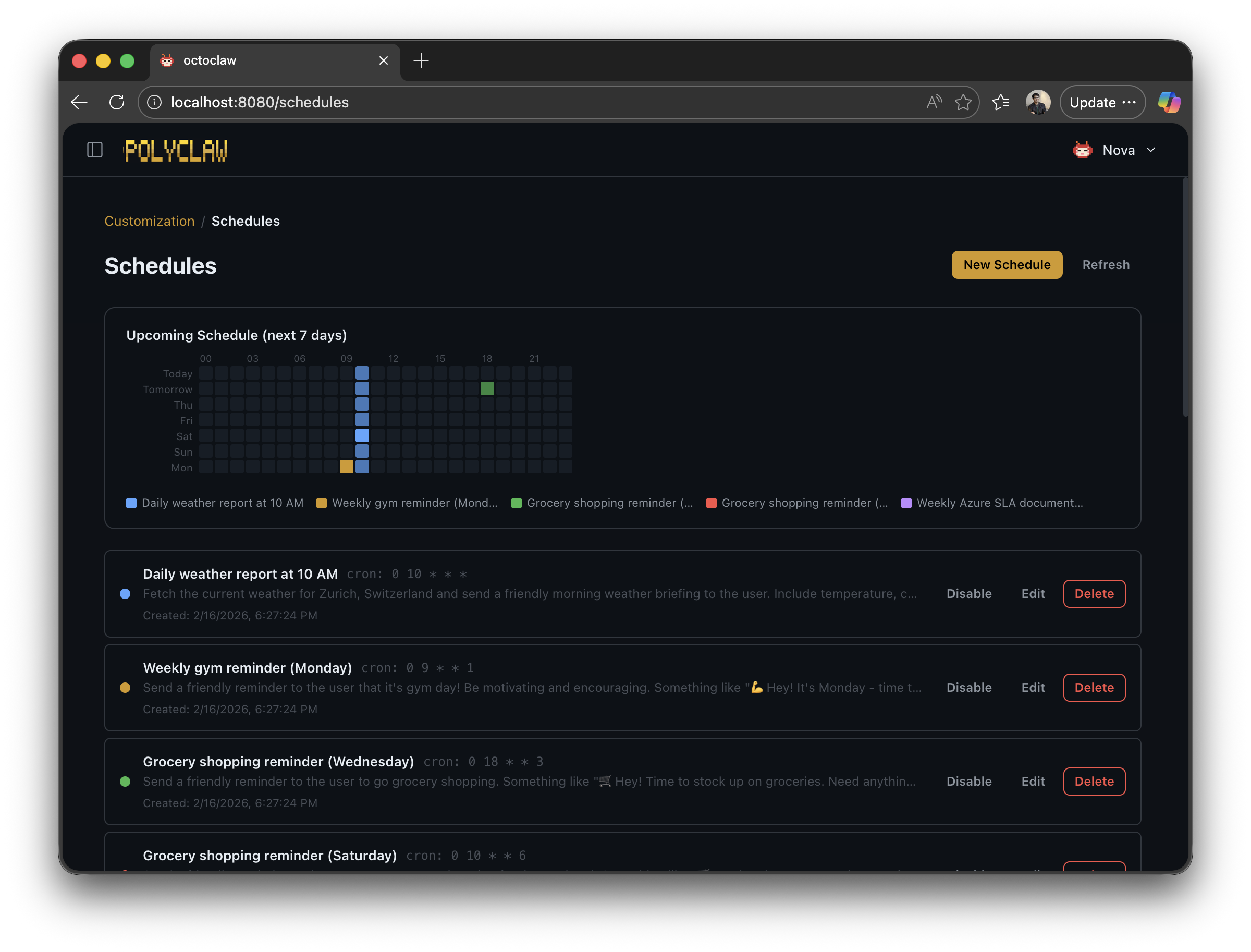
Task Scheduler
How It Works
The scheduler is a background loop that runs every 60 seconds, checking for due tasks. Tasks are stored in ~/.polyclaw/scheduler.json.
Task Types
Cron Tasks
Recurring tasks defined by a cron expression (minimum 1-hour interval):
{
  "id": "daily-report",
  "description": "Generate daily status report",
  "cron": "0 9 * * *",
  "prompt": "Generate a daily status report covering yesterday's activity",
  "enabled": true
}
One-Shot Tasks
Tasks that run once at a specific time:
{
  "id": "reminder-123",
  "description": "Remind about meeting",
  "run_at": "2025-03-15T14:00:00Z",
  "prompt": "Remind the user about the project review meeting at 2:30 PM",
  "enabled": true
}
Execution
When a task is due:
- A dedicated one-shot Copilot SDK session is created
- The task prompt is sent with a
scheduler_prompt.mdsystem message - The session uses the
gpt-4.1model (hardcoded) - Results are delivered via proactive messaging to all stored conversation references
Because gpt-4.1 is a fast but smaller model, it works best when it can follow a well-defined path rather than figure things out from scratch. For complex scheduled workflows, create a skill first in a normal conversation using a state-of-the-art reasoning model, then point the schedule at that skill. The stronger model does the hard work of writing the step-by-step instructions once; gpt-4.1 follows the paved path on every subsequent run.
Managing Tasks
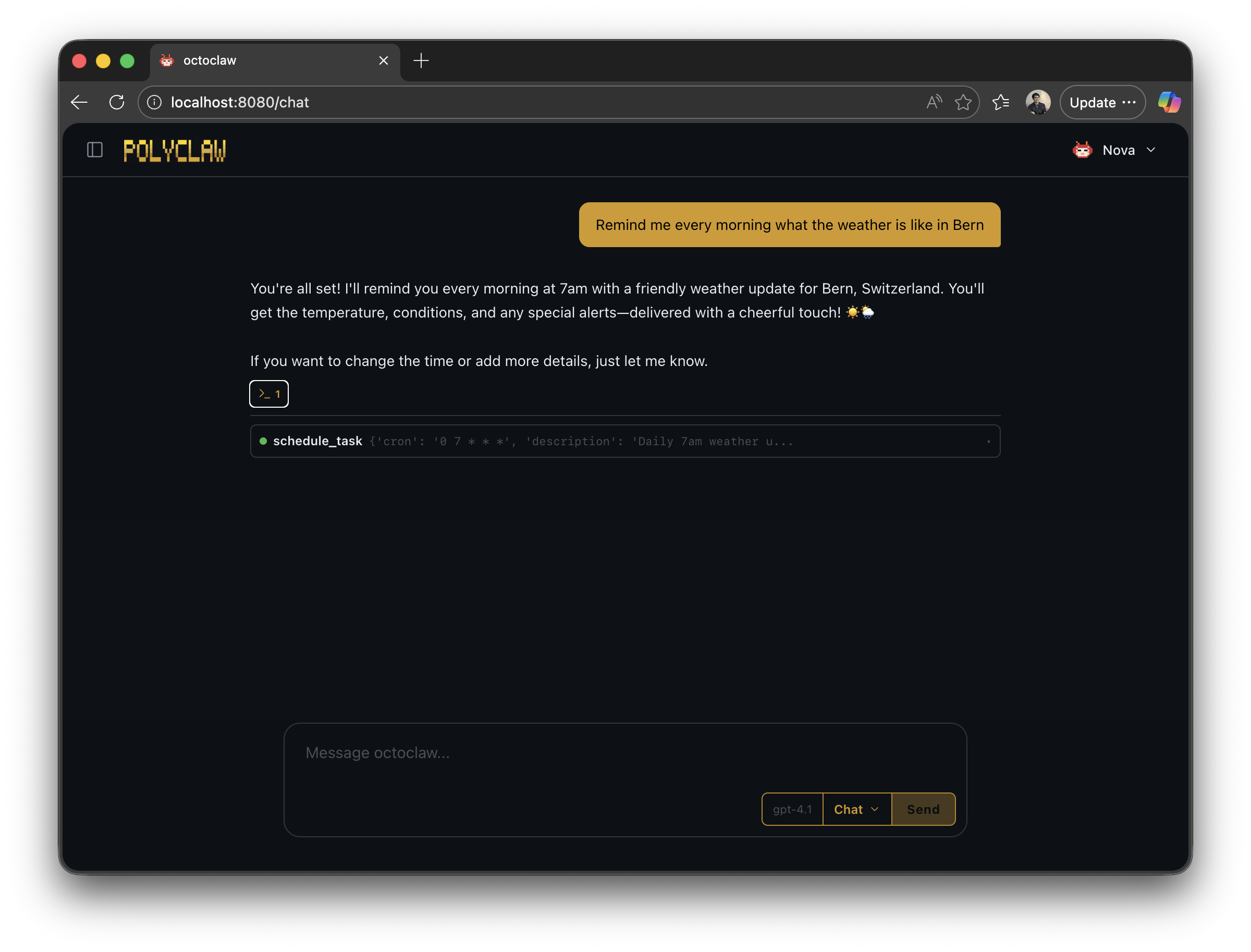
Via Agent Tools
The agent has built-in tools for scheduling:
Schedule a daily briefing at 9 AM
Cancel the daily-report task
List all scheduled tasks
Via Slash Commands
/schedules              # List all tasks
/schedule add <min> <hour> <dom> <month> <dow> <prompt>    # Add a task
/schedule remove <id>   # Remove a task
Via API
GET /api/schedules             # List tasks
POST /api/schedules            # Create task
DELETE /api/schedules/<id>     # Delete task
PUT /api/schedules/<id>        # Update task
Proactive Messaging (Experimental)
Most AI assistants are passive – they sit idle until you type something. You always initiate. The assistant never thinks to check in, never notices something you should know about, never follows up on a conversation from yesterday. Polyclaw’s proactive messaging changes that: the agent can reach out to you on its own when it has something worth saying.
Proactive messaging is disabled by default. Enable it through the web dashboard Proactive page – there is no environment variable to flip.
Generation Conditions
All conditions must be met:
| Condition | Description |
|---|---|
| Proactive enabled | Enabled via the admin dashboard |
| No pending message | Previous message has been delivered |
| Daily limit not reached | Configurable max_daily limit |
| Minimum gap respected | min_gap_hours since last message |
| Preferred time window | Within configured preferred_times |
| User idle | No interaction for at least 1 hour |
| Generation cooldown | At least 60 minutes since last generation attempt |
How It Works
- The proactive loop runs in the background
- When conditions are met, a one-shot LLM call generates a message
- Memory context (daily logs, topics) is included for relevance
- If the LLM returns
NO_FOLLOWUP, the message is skipped - Otherwise, the message is queued as pending
- The delivery loop sends it to all conversation references
Preferences
Stored in ~/.polyclaw/proactive.json:
{
  "enabled": true,
  "preferences": {
    "min_gap_hours": 4,
    "max_daily": 3,
    "avoided_topics": ["politics", "personal"],
    "preferred_times": "09:00-12:00, 14:00-17:00"
  }
}
Managing Proactive Messaging
Proactive messaging is managed via the web dashboard Proactive page or the REST API (/api/proactive/*).