 polyclaw
Setup Wizard
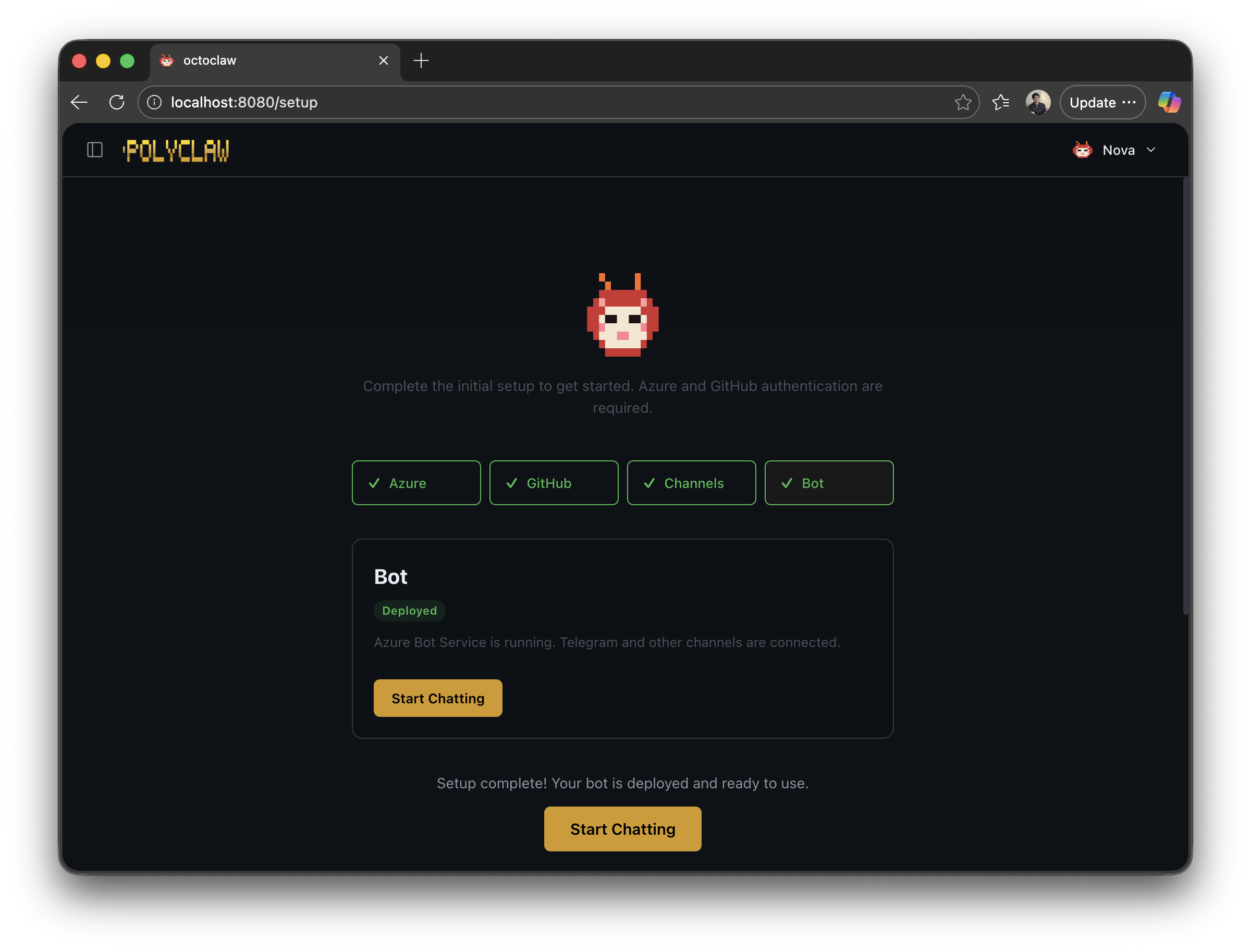
Once polyclaw finishes building and passes its health check, the TUI automatically opens the Setup screen in your default browser. From here you configure authentication, bot settings, and infrastructure.
Setup Screen
Authentication
Understand what these logins mean
Azure Login is required during setup.
Azure Login signs you in with the Azure CLI. During setup, your Azure identity is used to provision infrastructure (Foundry AI Services, Bot Service, Key Vault, etc.) via Bicep templates. After setup, the agent runtime operates under its own Azure identity—a service principal (Docker) or user-assigned managed identity (Azure Container Apps) with least-privilege RBAC. See Agent Identity for details.
Foundry BYOK (Bring Your Own Key) is the default authentication mode. When FOUNDRY_ENDPOINT is configured, the agent uses your Azure AI Services resource directly for LLM inference. The runtime authenticates via Entra ID bearer tokens (az account get-access-token) and requires the Cognitive Services OpenAI User role on the Foundry resource.
The runtime identity is scoped to:
- Bot Service Contributor on the resource group (create/update bot registrations)
- Reader on the resource group (enumerate resources)
- Key Vault access (read/write secrets)
- Session Executor (if sandbox is configured)
- Cognitive Services User (Content Safety, if configured)
- Cognitive Services OpenAI User (Foundry AI Services, for BYOK inference)
No elevated roles (Owner, Contributor, User Access Administrator) are assigned to the runtime. The security preflight checker verifies this. Your personal Azure CLI session remains on the admin container and is not shared with the runtime.
To further limit exposure, enable Guardrails to require human approval before the agent executes high-risk tools. Enable Sandbox Execution to redirect code execution to isolated Azure Container Apps sessions.
Status indicators for Azure and tunnel connectivity. Each can be initiated directly from this page:
- Azure Login – opens device-code flow for Azure CLI authentication
- Azure Logout – signs out of the current Azure CLI session
- Start Tunnel – starts a Cloudflare tunnel to expose the bot endpoint publicly
You can sign out of Azure after setup
Your personal Azure CLI session is used during setup for provisioning infrastructure and the runtime identity. Once the runtime identity is provisioned (service principal or managed identity), the agent authenticates independently using Entra ID bearer tokens for BYOK inference and scoped RBAC for Azure resource management. If you sign out of Azure on the admin container, core agent functionality (chat, skills, scheduling) continues to work. Operations that require your personal Azure CLI session (e.g., provisioning new infrastructure) will fail until you sign back in.
Bot Configuration
A form for configuring the Bot Framework deployment:
- Resource Group – Azure resource group for bot resources (default:
polyclaw-rg) - Location – Azure region (default:
eastus) - Bot Display Name – display name for the Azure Bot resource
- Telegram Token – Bot token from @BotFather (optional)
- Telegram Whitelist – comma-separated list of allowed Telegram usernames
Set a Telegram whitelist
Without a whitelist, anyone who discovers your bot’s Telegram handle can send it messages—and the agent will respond using the runtime identity’s Azure credentials. That means a stranger could instruct your agent to take actions within the scope of its RBAC roles. Always set a whitelist with only the Telegram usernames you trust.
Infrastructure Actions
- Save Configuration – persists bot and channel settings
- Deploy Infrastructure – provisions Azure infrastructure via Bicep (AI Services, Key Vault, Content Safety, etc.). See Bicep Infrastructure.
- Deploy Content Safety – provisions Azure AI Content Safety for Prompt Shields integration (recommended)
- Provision Agent Identity – creates the runtime service principal or managed identity with least-privilege RBAC
- Decommission Infrastructure – tears down deployed Azure resources
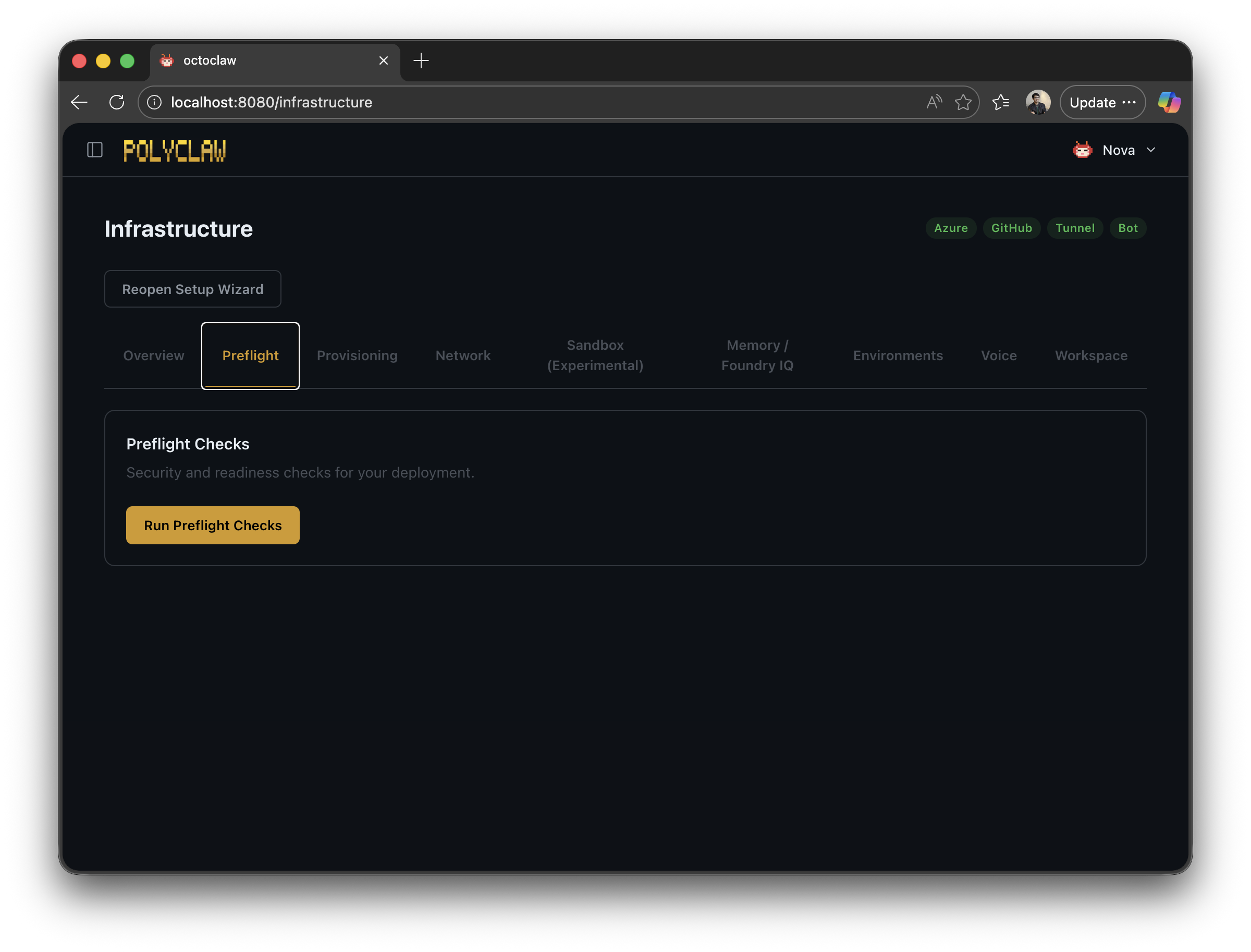
- Run Preflight Checks – validates bot credentials, JWT, tunnel, endpoint auth, channel security, identity, and RBAC
- Run Security Preflight – comprehensive evidence-based validation of identity, RBAC roles, secret isolation, and credential separation
- Run Smoke Test – end-to-end connectivity test
Identity Setup (Web Dashboard)
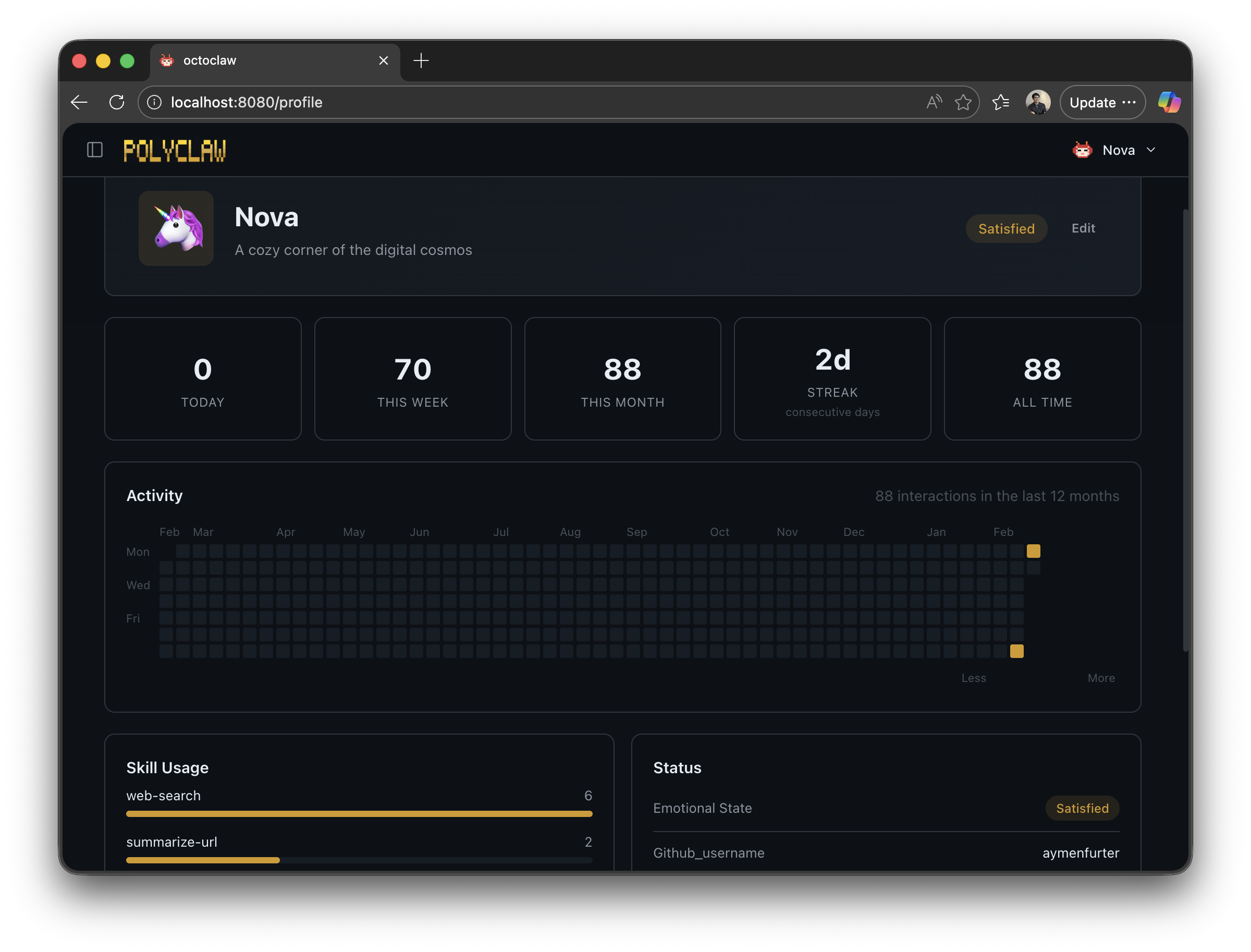
On first launch, the agent detects whether identity has been configured by checking the SOUL.md file and profile state. If not configured, a bootstrap prompt activates that walks through the setup conversationally.
Steps
- Identity – the agent chooses a name, emoji, location, and personality traits for itself
- SOUL.md – a Markdown file at
~/.polyclaw/SOUL.mddefining the agent’s personality, communication style, and behavioral guidelines. Used as part of the system prompt for every interaction. - Channel setup (optional) – if Bot Framework credentials are configured, the wizard can start a tunnel, deploy a bot resource, and configure Teams or Telegram channels
- Completion – the bootstrap prompt deactivates and the agent switches to normal operation
Re-running Setup
To reset identity and re-enter the wizard:
- Delete
~/.polyclaw/SOUL.md - Clear the profile state via
/profilecommands or delete~/.polyclaw/agent_profile.json - Restart Polyclaw
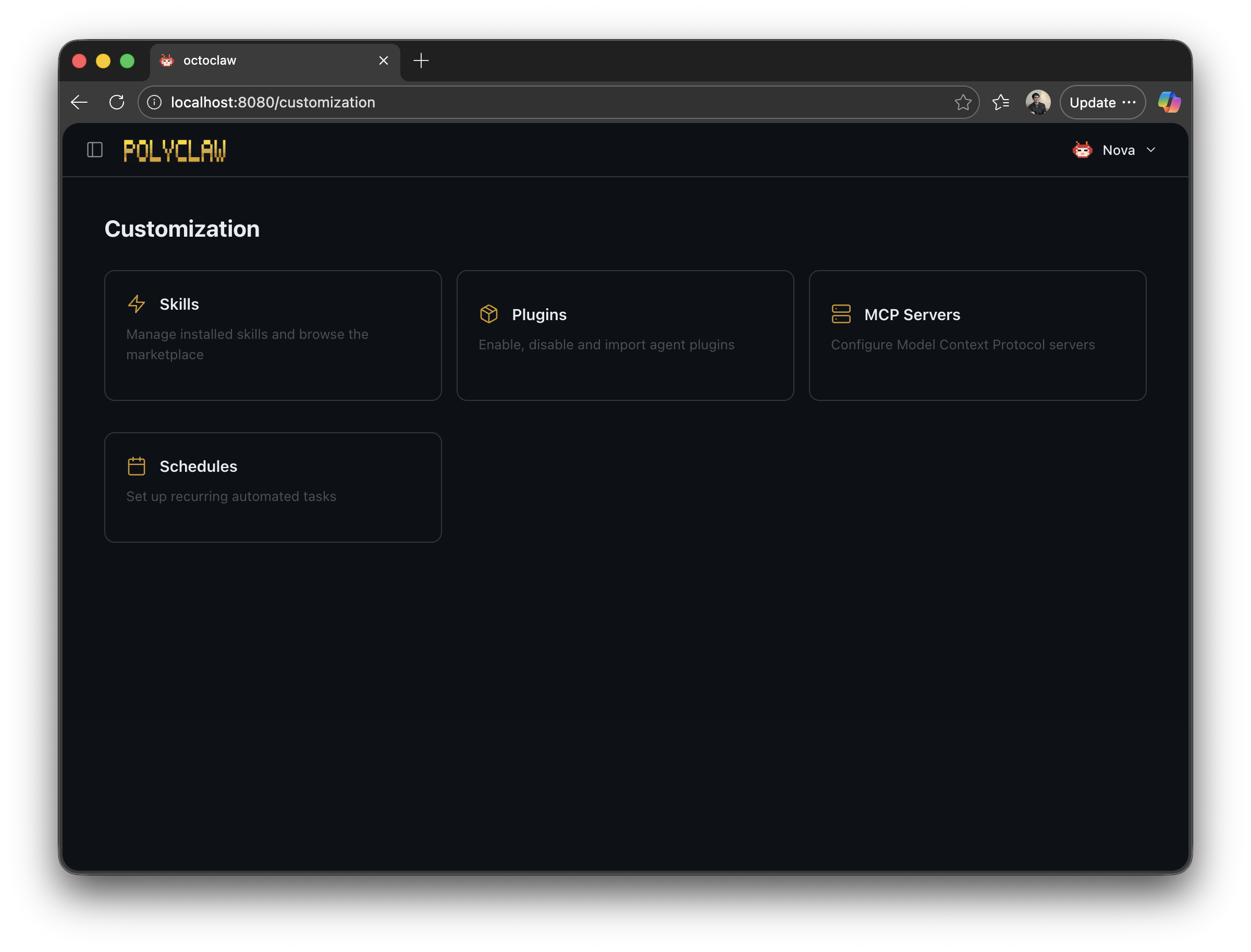
Customization Page
The web dashboard includes a Customization page that gives an overview of everything you can configure on your agent:
- Skills – installed and self-created agent skills
- Plugins – active MCP plugin connections
- MCP Servers – registered Model Context Protocol servers
- Scheduling – recurring and one-shot scheduled tasks