 polyclaw
MCP Servers
What is MCP?
The Model Context Protocol (MCP) is an open standard that lets AI agents call external tools and access data sources. An MCP server is a lightweight process or service that exposes a set of tools – the agent discovers them automatically and can invoke them during conversations.
This is how Polyclaw gets capabilities like browser automation, Azure resource management, documentation search, and GitHub integration without any of that logic living inside the agent itself. You enable the MCP servers you need, and the agent gains their tools.
Managing MCP Servers
The web dashboard is the easiest way to discover, add, and manage MCP servers.
Discover and Browse
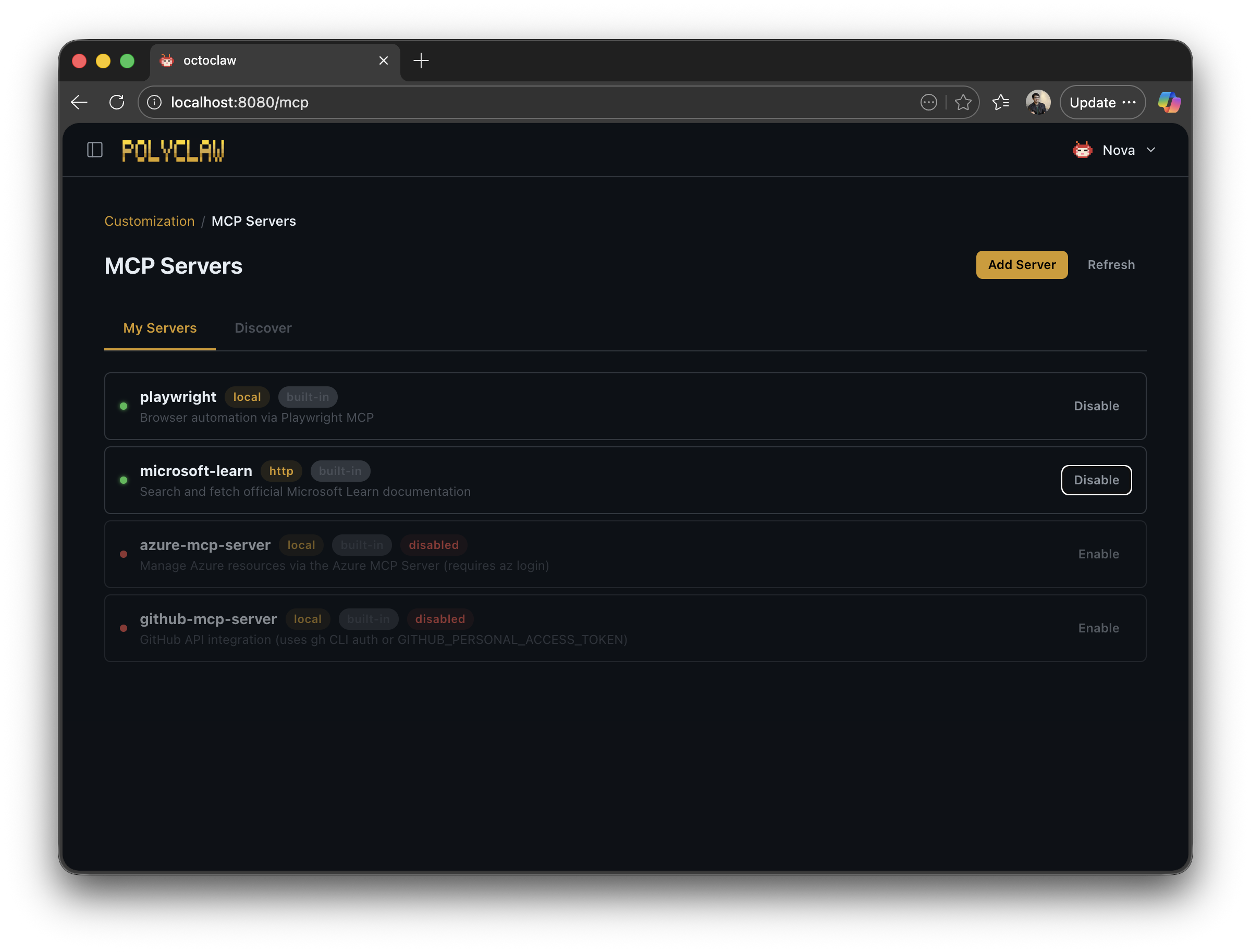
The MCP Servers page lists all configured servers along with their type, status, and a toggle to enable or disable each one.
Marketplace
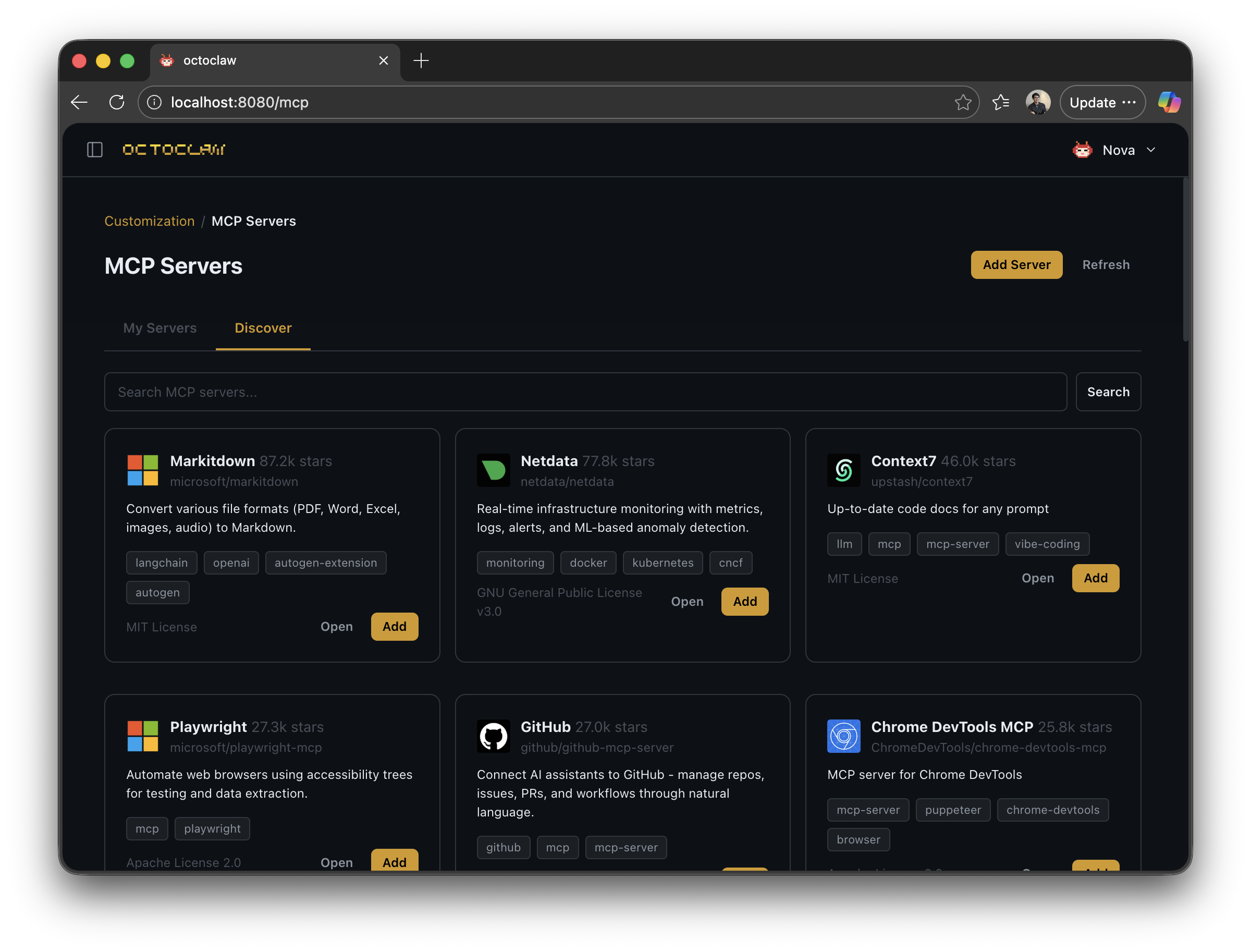
The discovery page lets you browse a catalog of available MCP servers and enable them with one click.
Adding a Server
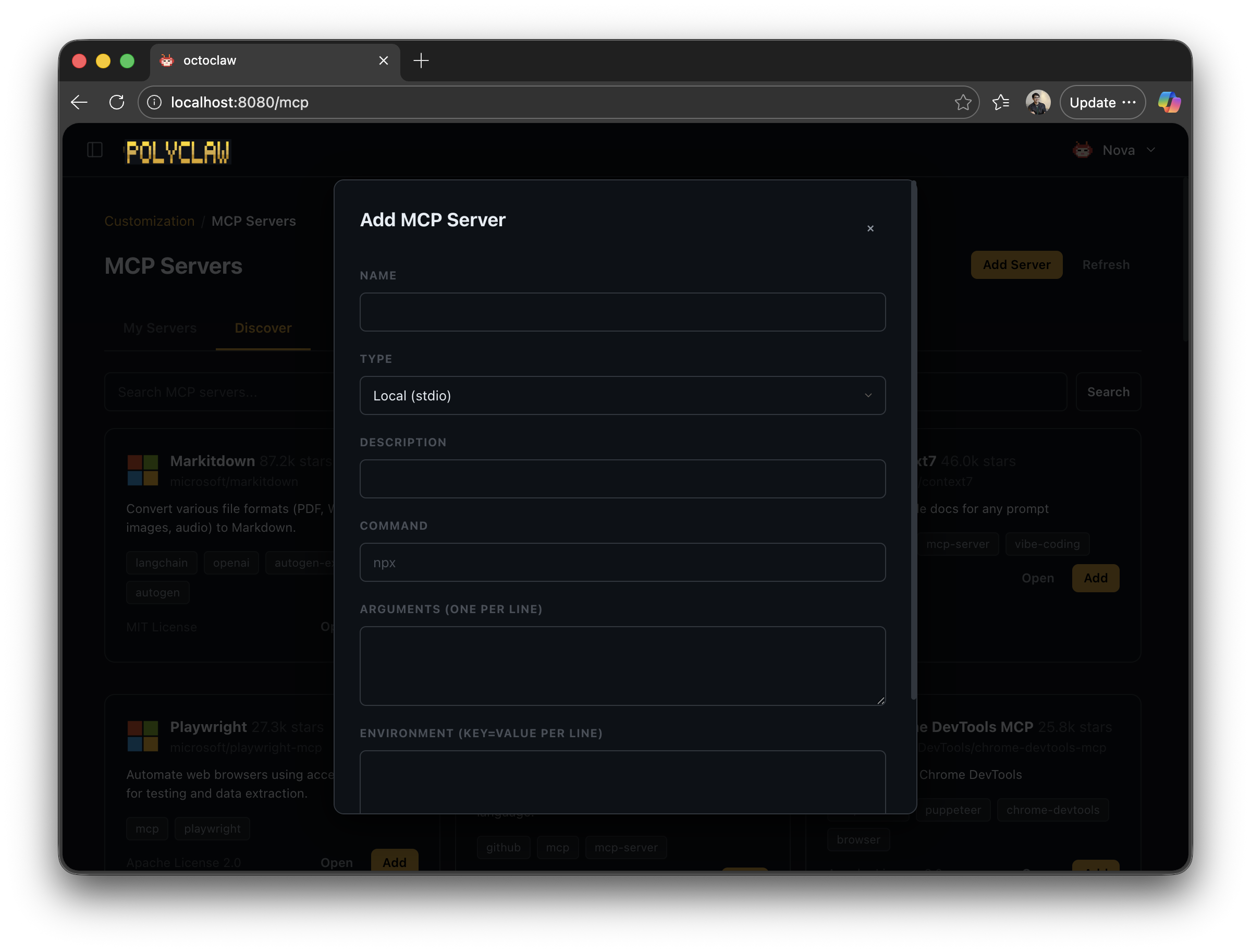
You can add any MCP server – local or remote – through the dashboard. Specify whether it is a local subprocess or a remote HTTP/SSE endpoint, provide the connection details, and save.
Slash Commands
/mcp                    # List all MCP servers
/mcp enable <id>        # Enable a server
/mcp disable <id>       # Disable a server
/mcp add <name> <url>   # Add a new server definition
/mcp remove <id>        # Remove a server
API
GET  /api/mcp/servers                # List servers
POST /api/mcp/servers                # Add server
PUT  /api/mcp/servers/<id>           # Toggle / update server
DELETE /api/mcp/servers/<id>         # Remove server
Using MCP Tools in Conversations
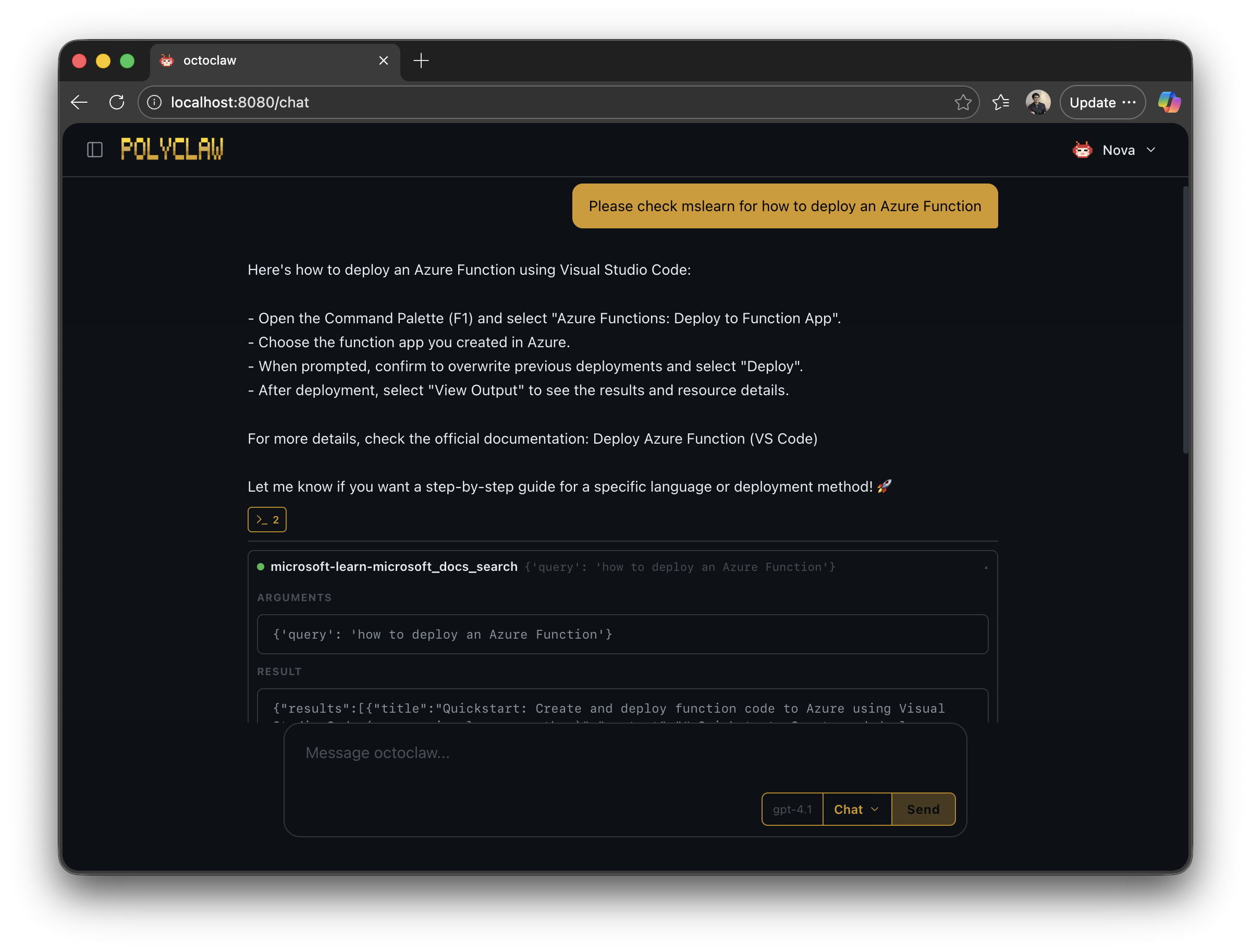
Once an MCP server is enabled, the agent can use its tools immediately – no extra prompting required. The agent discovers available tools at session start and decides when to call them based on your request.
Example: Microsoft Learn
Enable the Microsoft Learn MCP server, then ask the agent to look something up in the docs.
Example: Playwright Browser
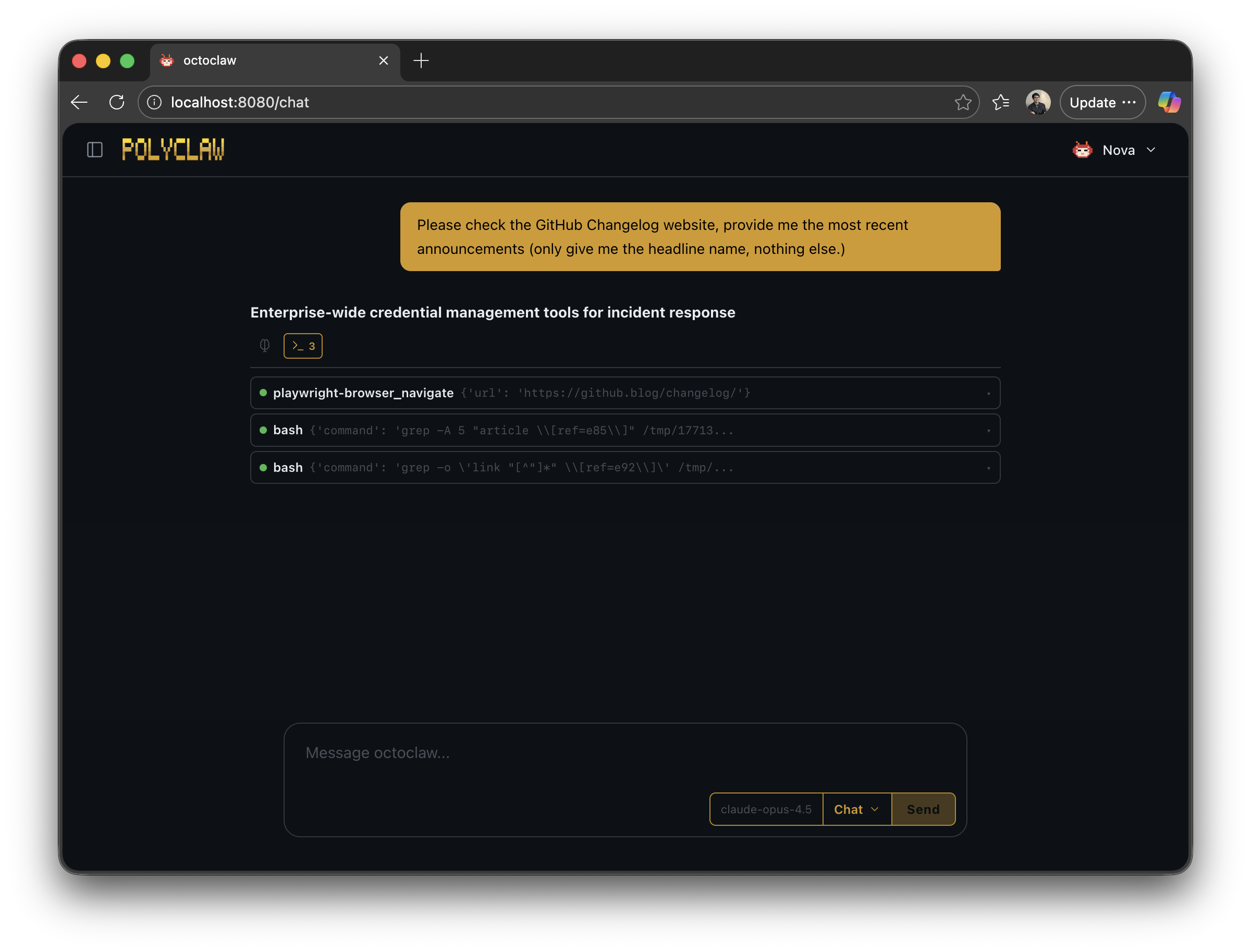
The Playwright MCP server gives the agent a full headless browser. It can navigate pages, fill forms, take screenshots, and extract content.
How It Works Under the Hood
- On session creation, all enabled MCP servers are passed to the Copilot SDK
- The SDK connects to each server and discovers its tools via
tools/list - MCP server descriptions are included in the agent’s system prompt
- During conversation, the LLM can call any tool exposed by connected servers
- Tool results are returned to the LLM as context for generating responses
Server Types
Polyclaw supports four transport types:
| Type | Description |
|---|---|
local | Subprocess spawned by Polyclaw, communicates via stdio |
stdio | External process with stdin/stdout transport |
http | Remote HTTP endpoint |
sse | Server-Sent Events endpoint |
Built-in MCP Servers
Polyclaw ships with several pre-configured MCP servers:
| Server | Type | Default | Purpose |
|---|---|---|---|
| Playwright | local | Enabled | Browser automation (web search, scraping, UI testing) |
| Microsoft Learn | http | Disabled | Search Microsoft documentation |
| Azure MCP Server | local | Disabled | Azure resource management (requires az login) |
| GitHub MCP Server | local | Disabled | GitHub API integration (requires gh auth login) |
Configuration Storage
MCP server definitions are stored in ~/.polyclaw/mcp_servers.json. Each entry specifies a server type, connection details, and metadata. You rarely need to edit this file directly – the dashboard and slash commands manage it for you.
Adding Custom MCP Servers
Any process that implements the MCP protocol can be added. The server must:
- Accept connections via the configured transport (stdio, HTTP, or SSE)
- Respond to
tools/listto enumerate available tools - Handle
tools/callto execute tool invocations - Return structured results
See the MCP specification for the full protocol definition.